iPhone Duo Wallpaper Cropping Bug: Temporary Workaround
Turn on Show Preview in Cuto Helper to prevent wallpapers from appearing zoomed in and cropped on the inner display.
Last updated: November 2, 2026
We’ve found a bug in the system’s Shortcuts app on iPhone Duo: after setting a wallpaper with Cuto Helper, it may look normal on the outer display but appear zoomed in and cropped on the inner display when you unfold the phone.
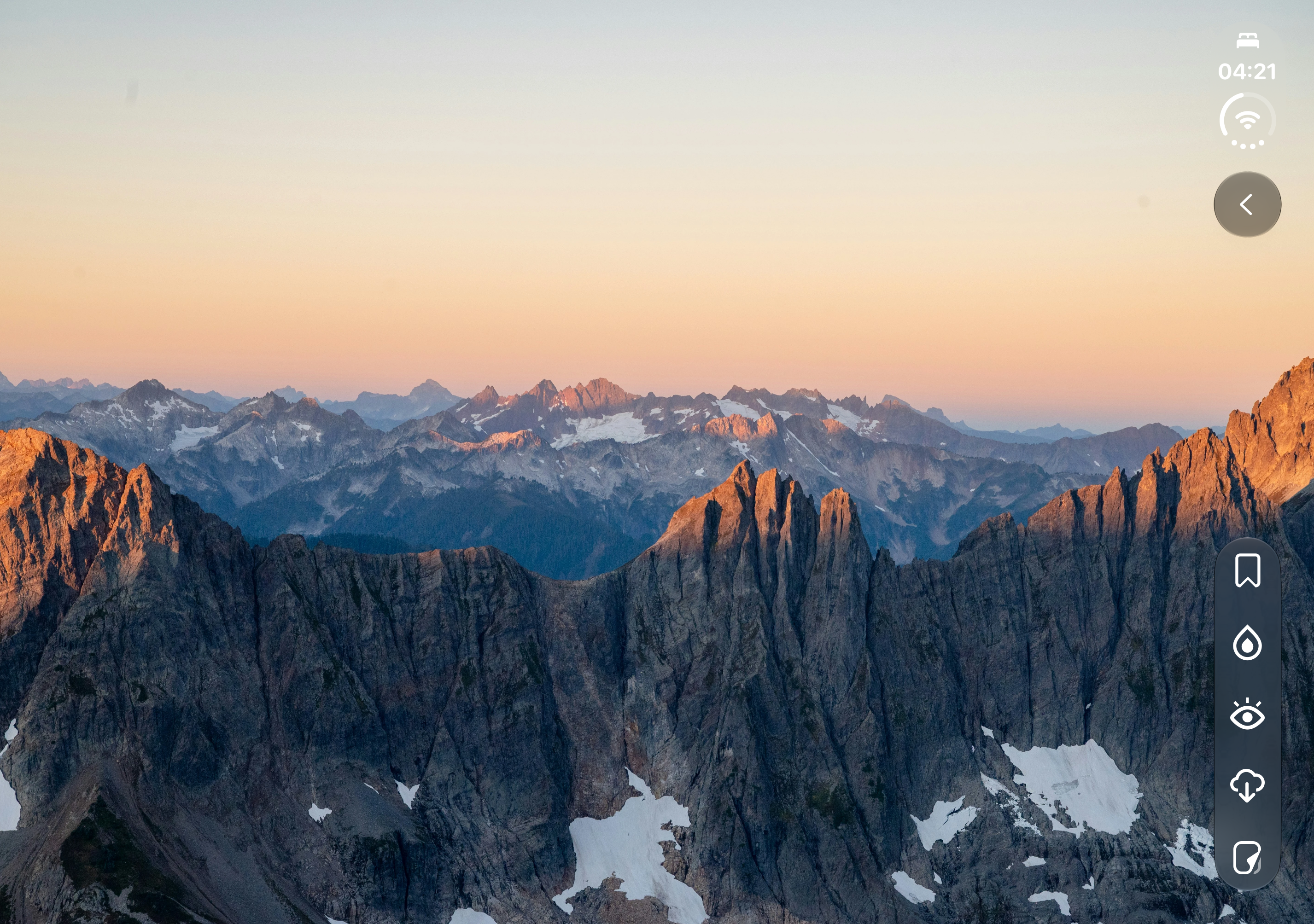
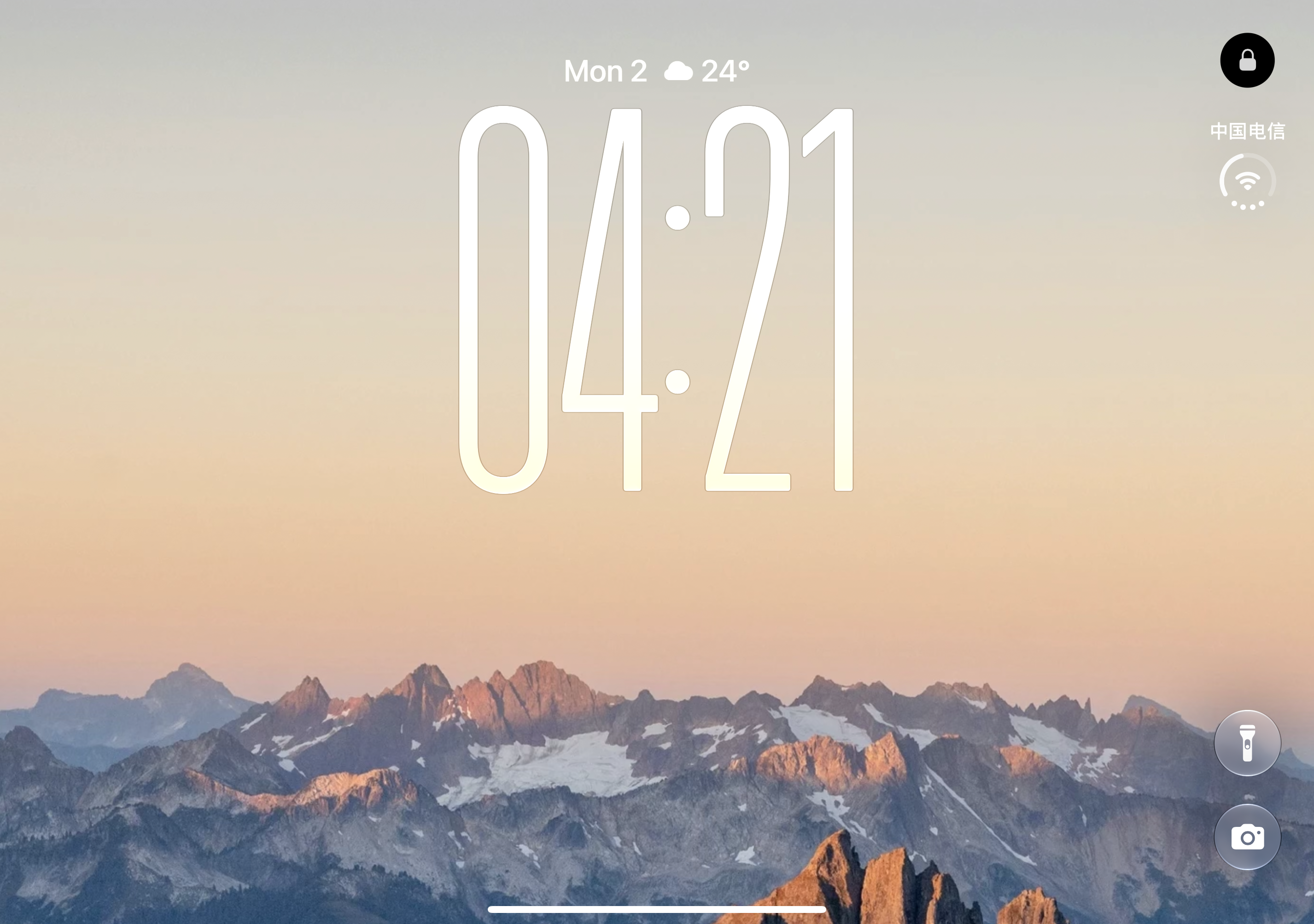
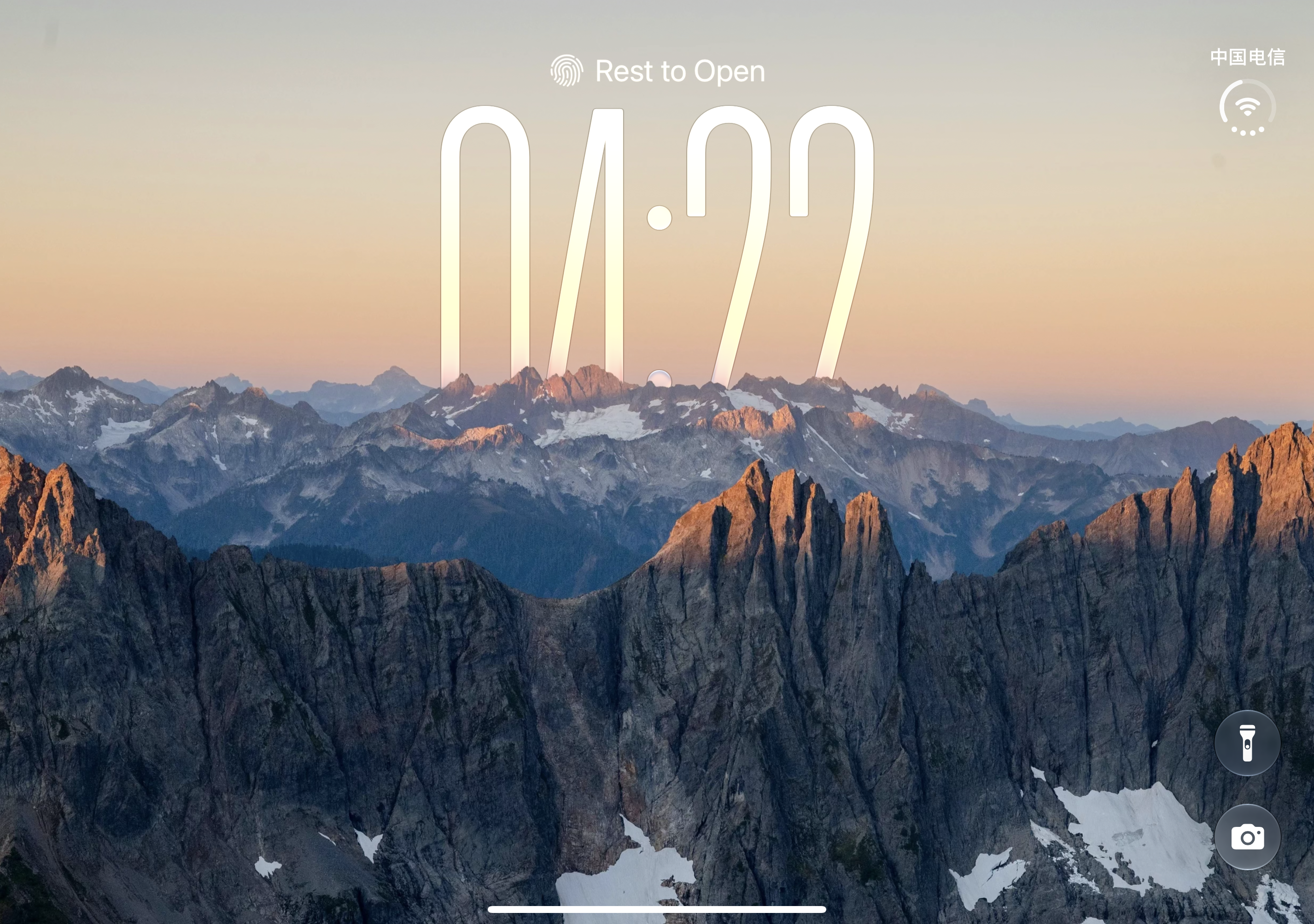
If you’re experiencing this issue, follow the steps below to turn on Show Preview in Cuto Helper as a temporary workaround.
Update Cuto Helper
You only need to change this setting once.
- Open the Shortcuts app on your iPhone.
- Find Cuto Helper in All Shortcuts, then tap … in the top-right corner of its card to open the editor.
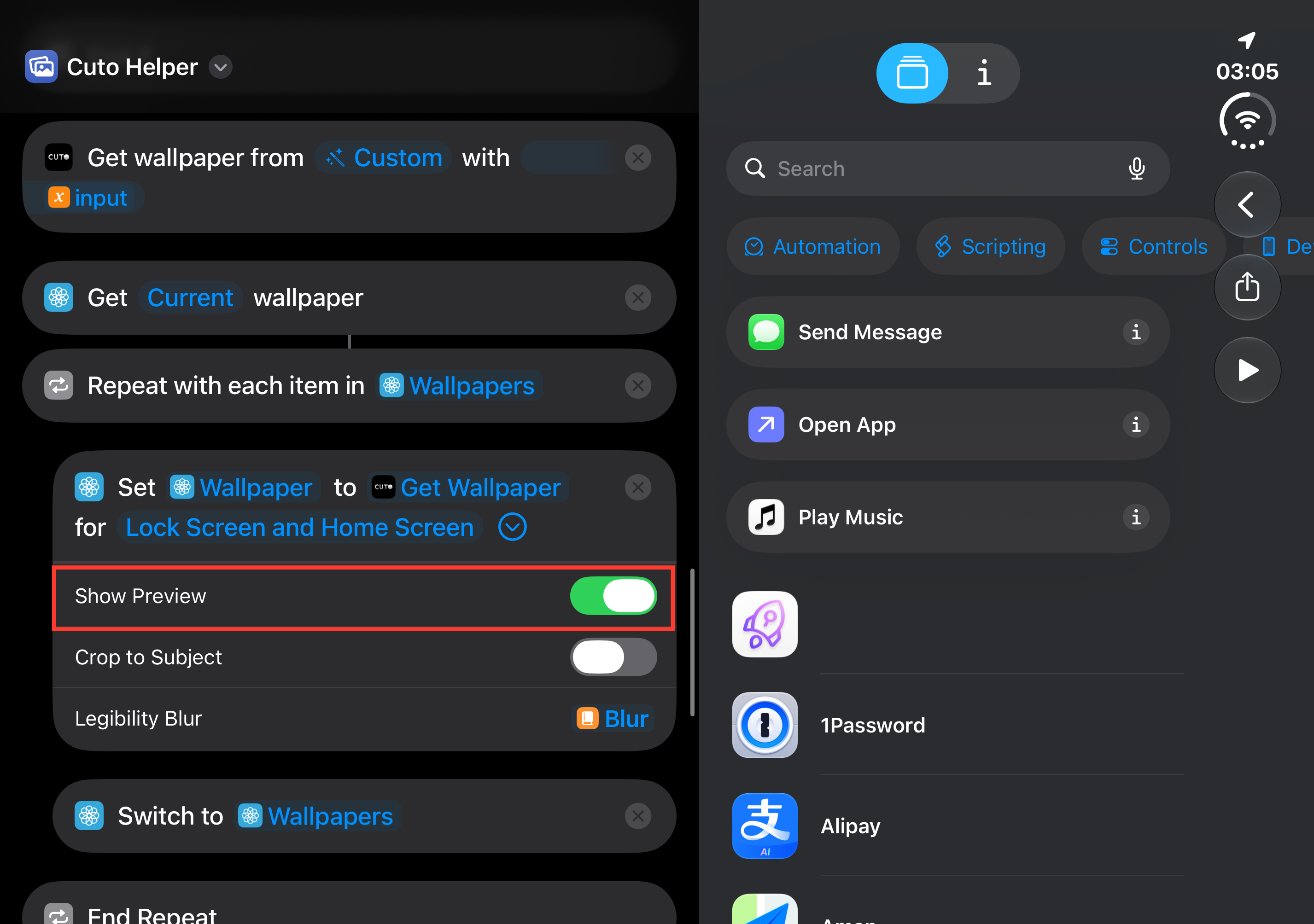
- Scroll down to the action that sets the Lock Screen and Home Screen wallpaper using Get Wallpaper.
- Tap the blue down arrow next to Lock Screen and Home Screen at the end of that action to reveal its options.
- Turn on Show Preview so the switch is green. Leave the other options unchanged.
- Return to the shortcuts list. Your changes are saved automatically.
Set your wallpaper again in Cuto
- Unfold your iPhone Duo, open Cuto, choose a wallpaper, and use Quick Wallpaper Update to set it. If your current wallpaper is already cropped, you’ll need to set it again.
- The system’s wallpaper preview will now appear. Check that the image looks right, then tap the confirmation button in the top-right corner to apply it.
- Check both displays to make sure the wallpaper looks right and is no longer unexpectedly zoomed in or cropped on the inner display.
Keep Show Preview turned on. Each time you set a wallpaper from Cuto, you’ll need to confirm it on the preview screen.
If the issue persists, contact us through the feedback option in Cuto. Please include your iOS version and screenshots of the wallpaper on both displays so we can investigate.