Automation
Automatically change to a black wallpaper when Low Power Mode is enabled
⚠️ If you are using Shortcuts for the first time, please enable the “Allow Untrusted Shortcuts” switch in the system “Settings - Shortcuts” to allow adding Cuto shortcuts.
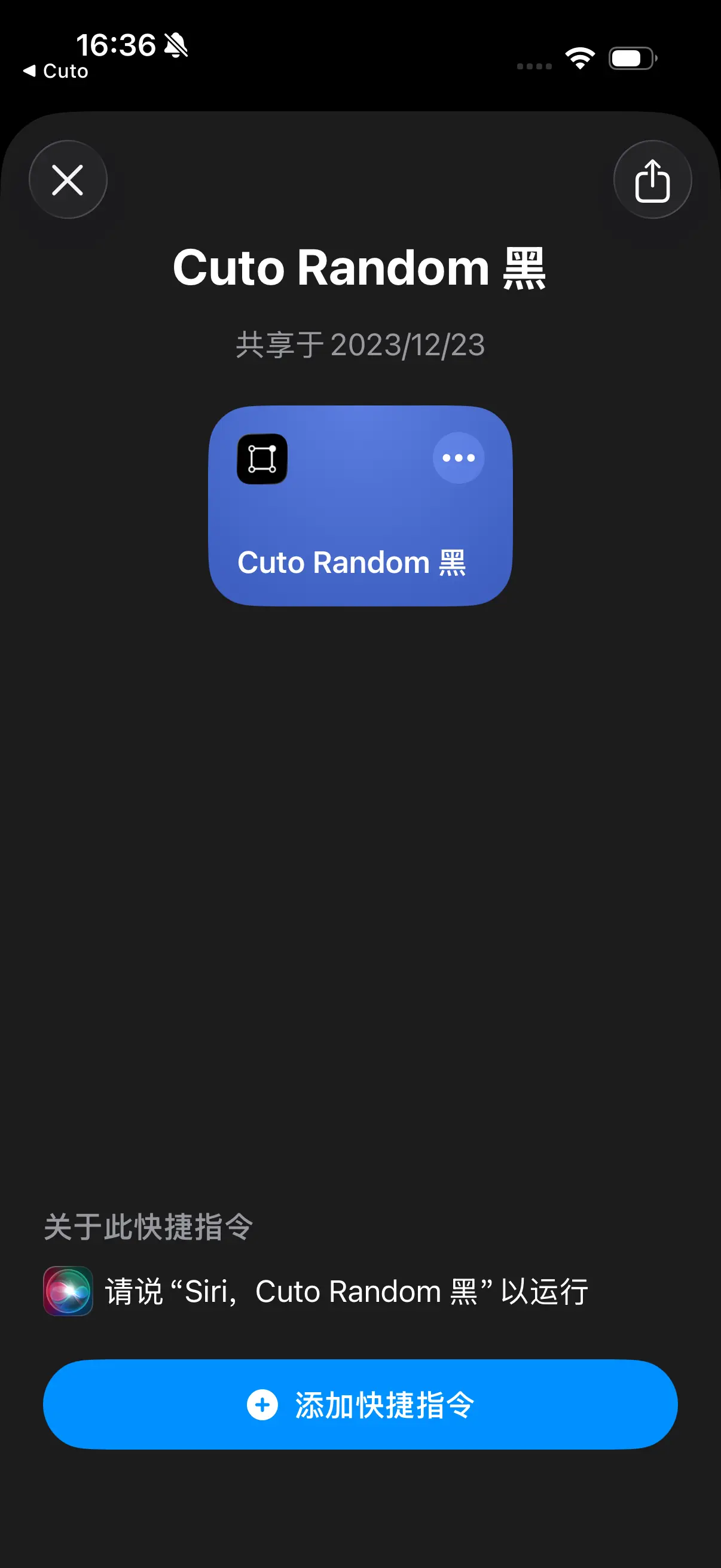
Step 1: Add Shortcut
Please tap the “Cuto Random Black” card below to jump to the “Shortcuts” App for adding.
【Card or link embedded】
Step 2: Create Automation
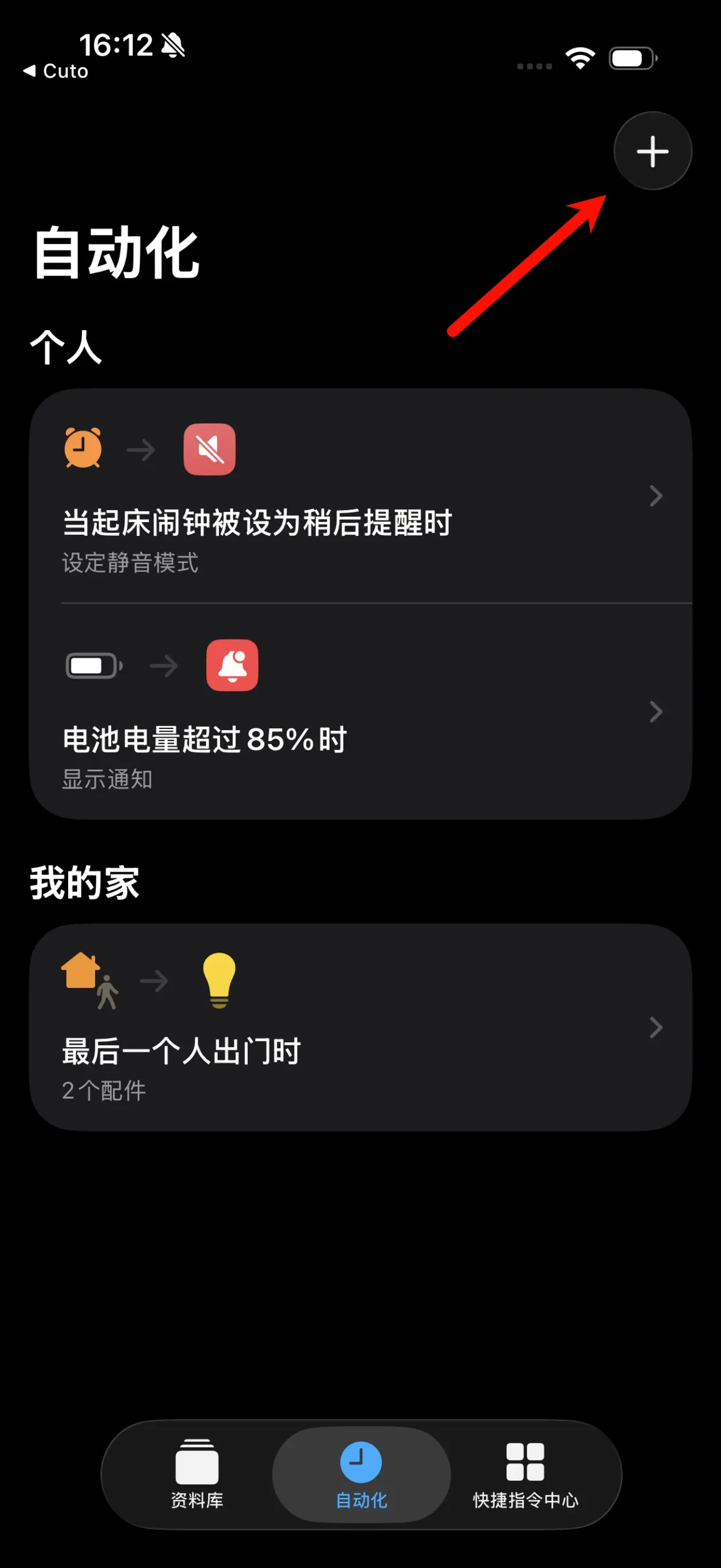
In the “Shortcuts” App, select “Automation” at the bottom and tap the ”+” button in the top right corner.
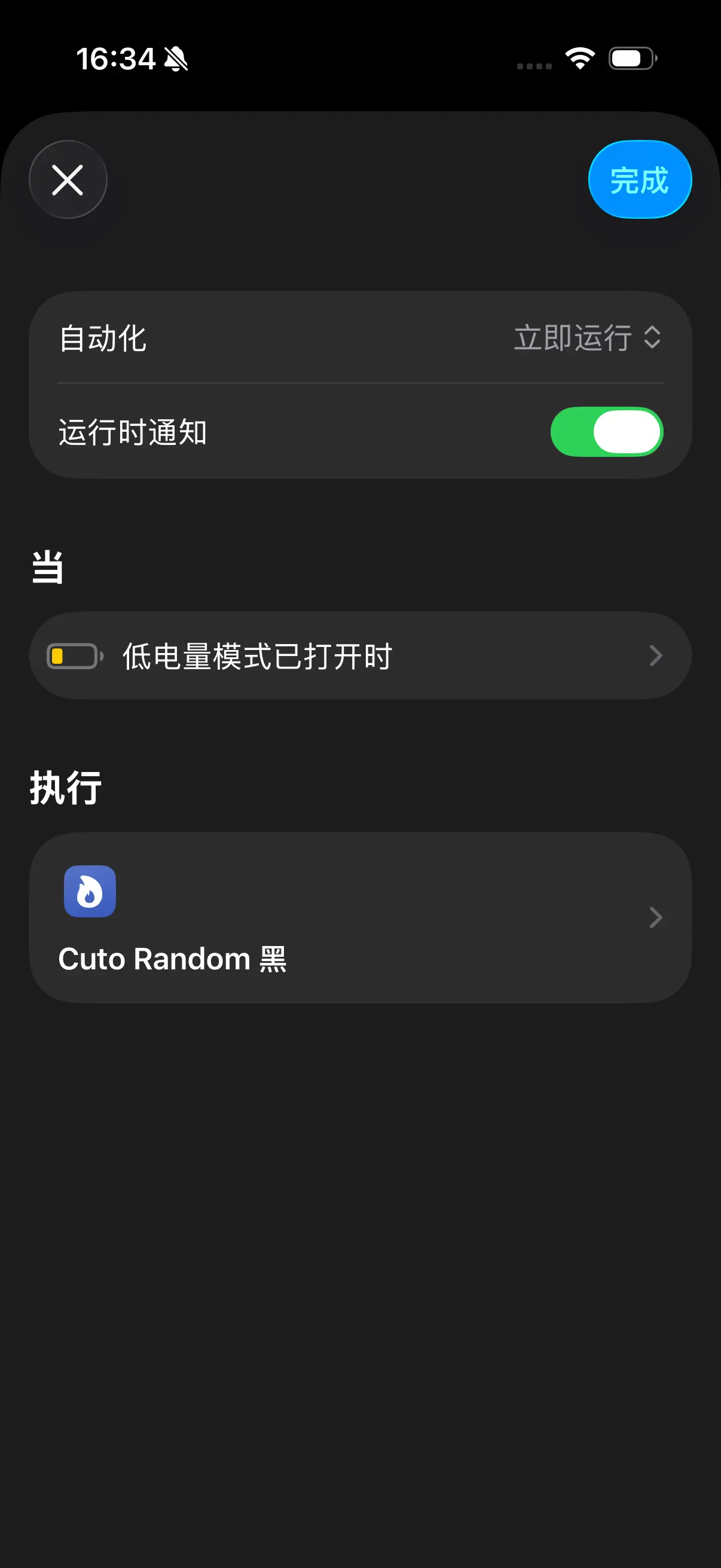
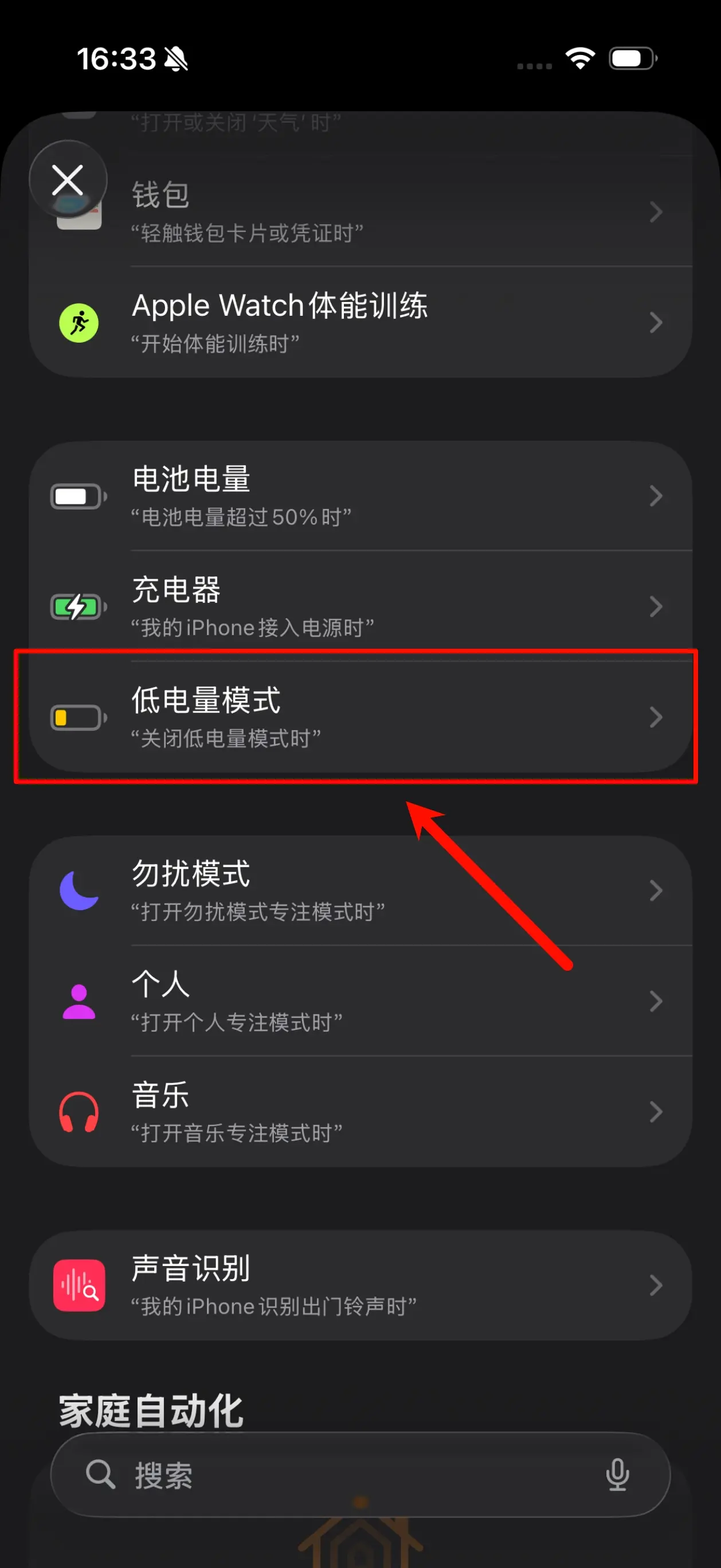
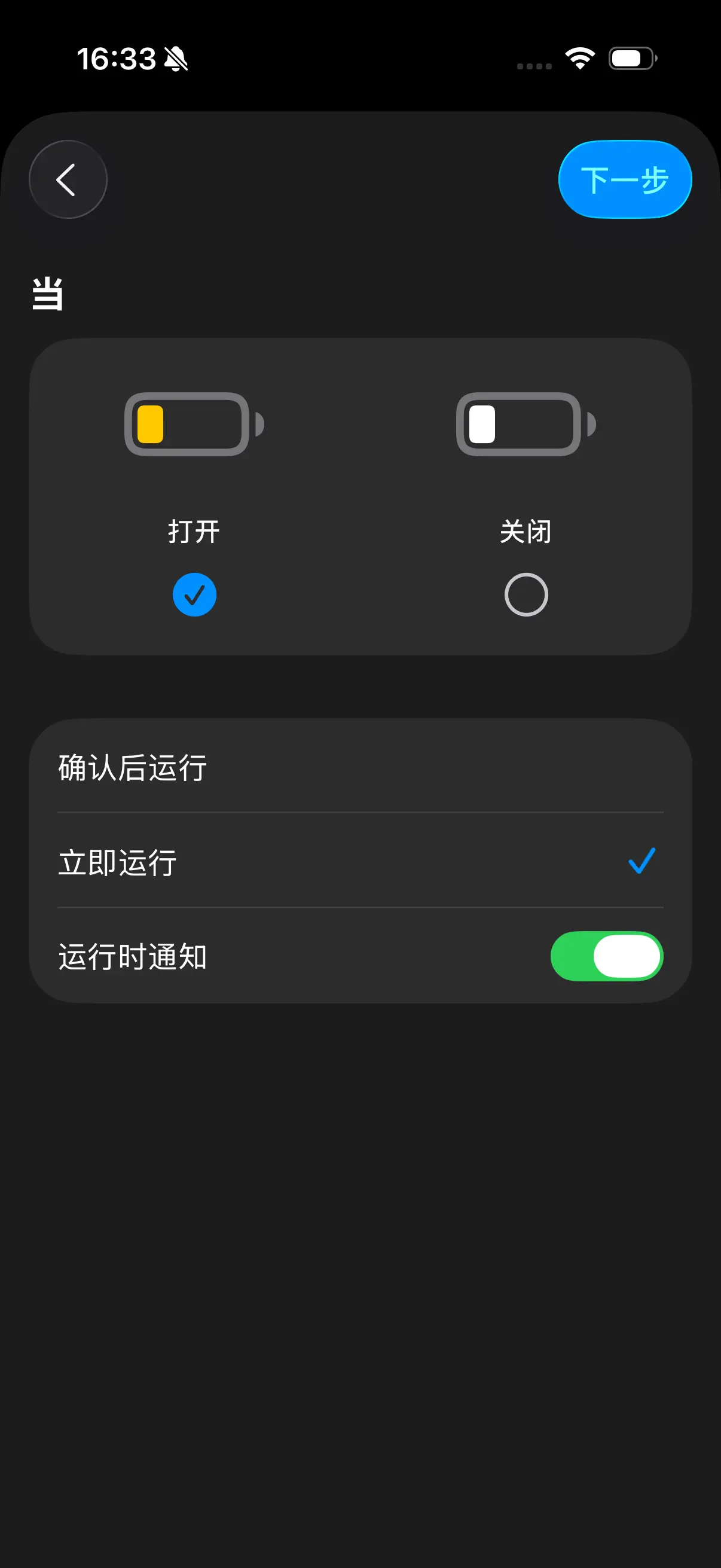
Scroll down to find and select “Low Power Mode”, check “Turn On”, and choose “Run Immediately” below.
The “Notify When Run” can be enabled as needed, and if turned off, the wallpaper change experience is more seamless.
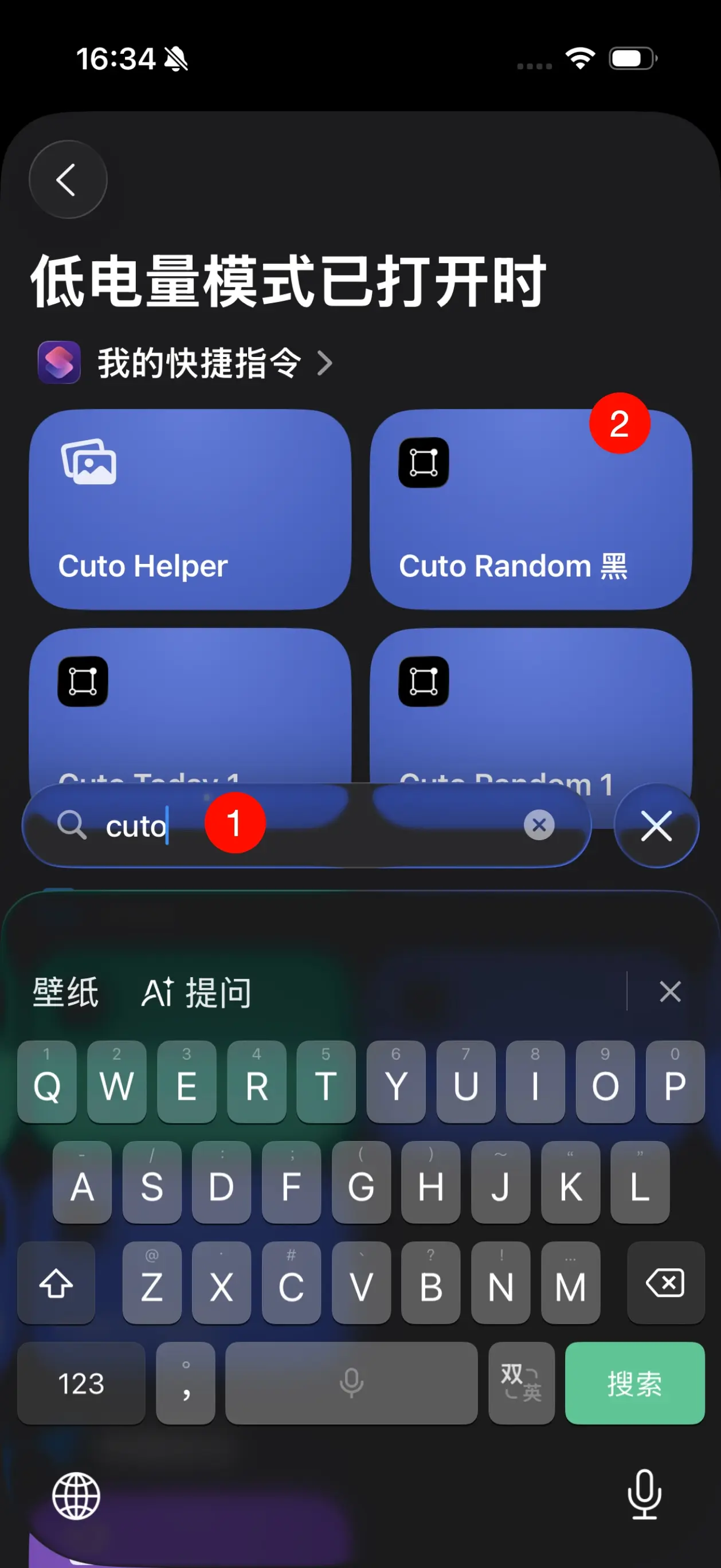
Enter “Cuto” in the search box to search, find the newly added “Cuto Random Black” shortcut card, and complete the automation creation.