iOS 27: Set Up Automatic Wallpaper Changes
Last updated: November 2, 2026
This guide is for iOS 27. If you use an earlier version of iOS, see our previous Shortcuts automation guide.
Wake up to a new Cuto wallpaper every day. With Apple’s Shortcuts app, you can schedule your wallpaper to change at a time you choose.
This guide shows how to run Cuto Random every day at 8:00 AM to pick a random wallpaper.
Before you start: install a Cuto shortcut and run it once
- Open Cuto and go to Custom → Automation.
- Select Cuto Random, then follow the prompts in the Shortcuts app to add it. Choose Cuto Today instead if you prefer Cuto’s daily featured wallpaper.
- In the Shortcuts app, tap the shortcut you just added to run it once manually. Allow the permissions it requests and check that your wallpaper changes successfully.
If the shortcut shows an error when you run it manually, resolve that issue before setting up the schedule.
Step 1: Create a shortcut
Open the Shortcuts app and create a new shortcut.
In the action panel, tap Automation.
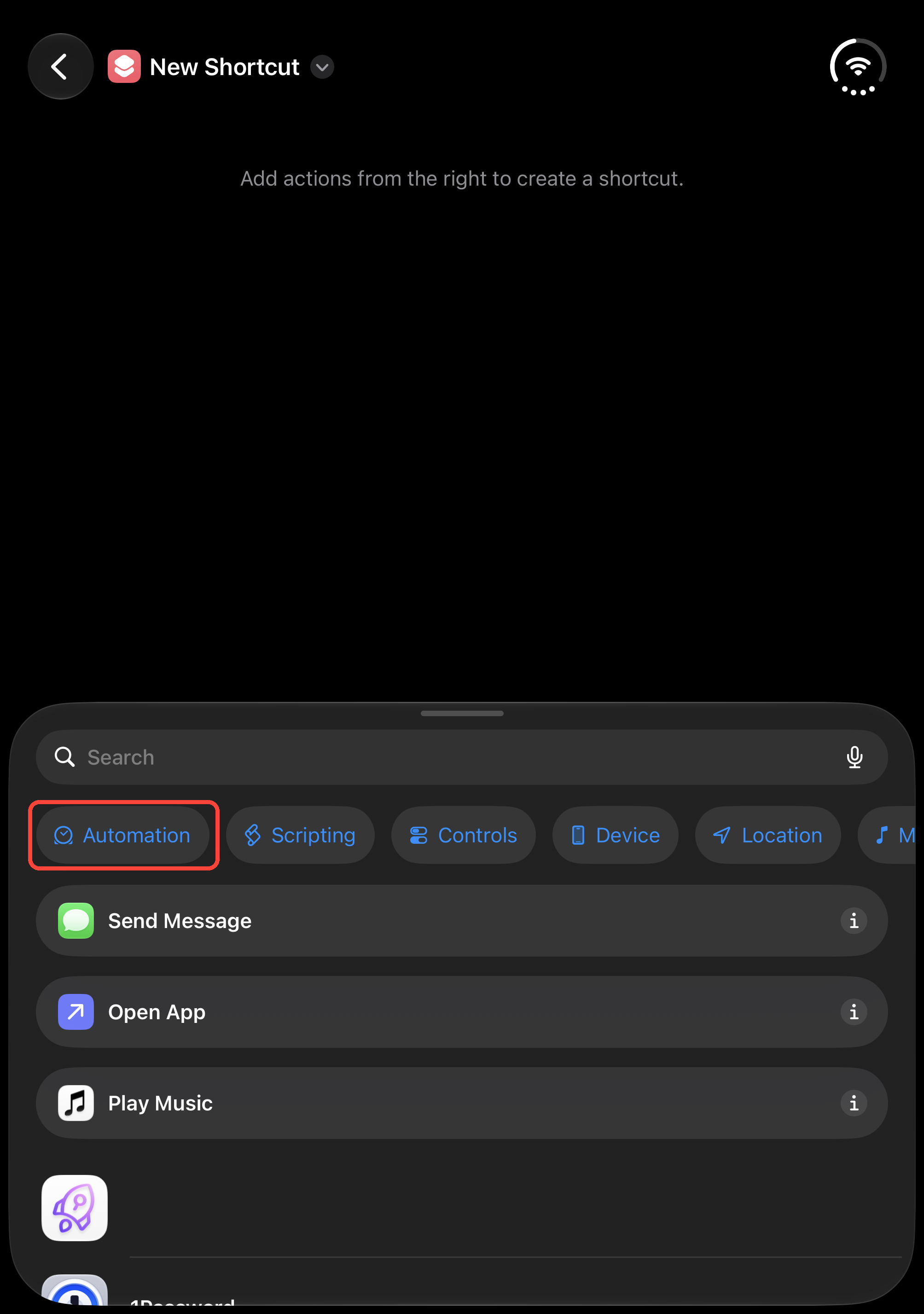
Step 2: Add Time of Day
Under Daily Routine, tap Time of Day to add a scheduled trigger.
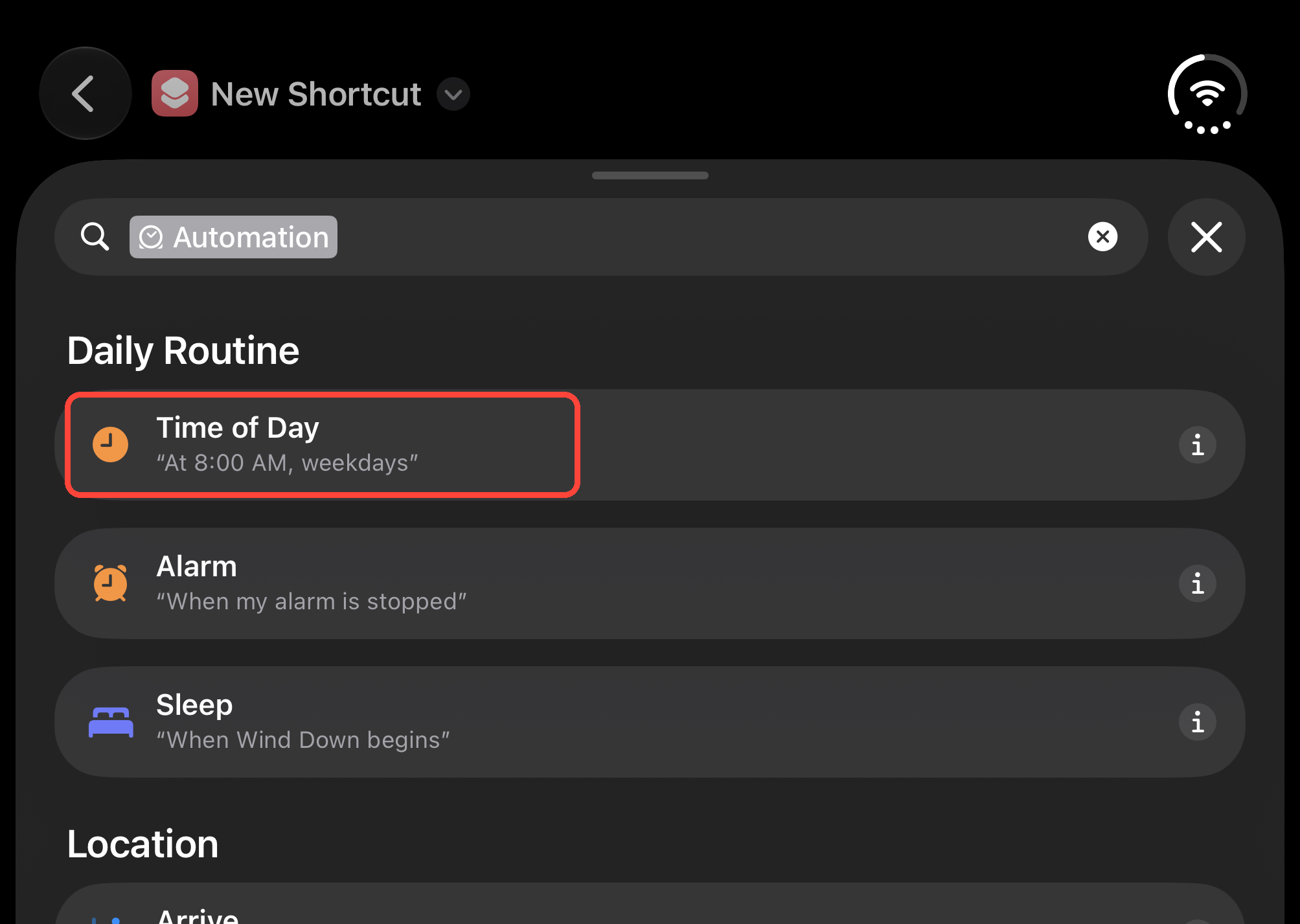
Step 3: Choose a time
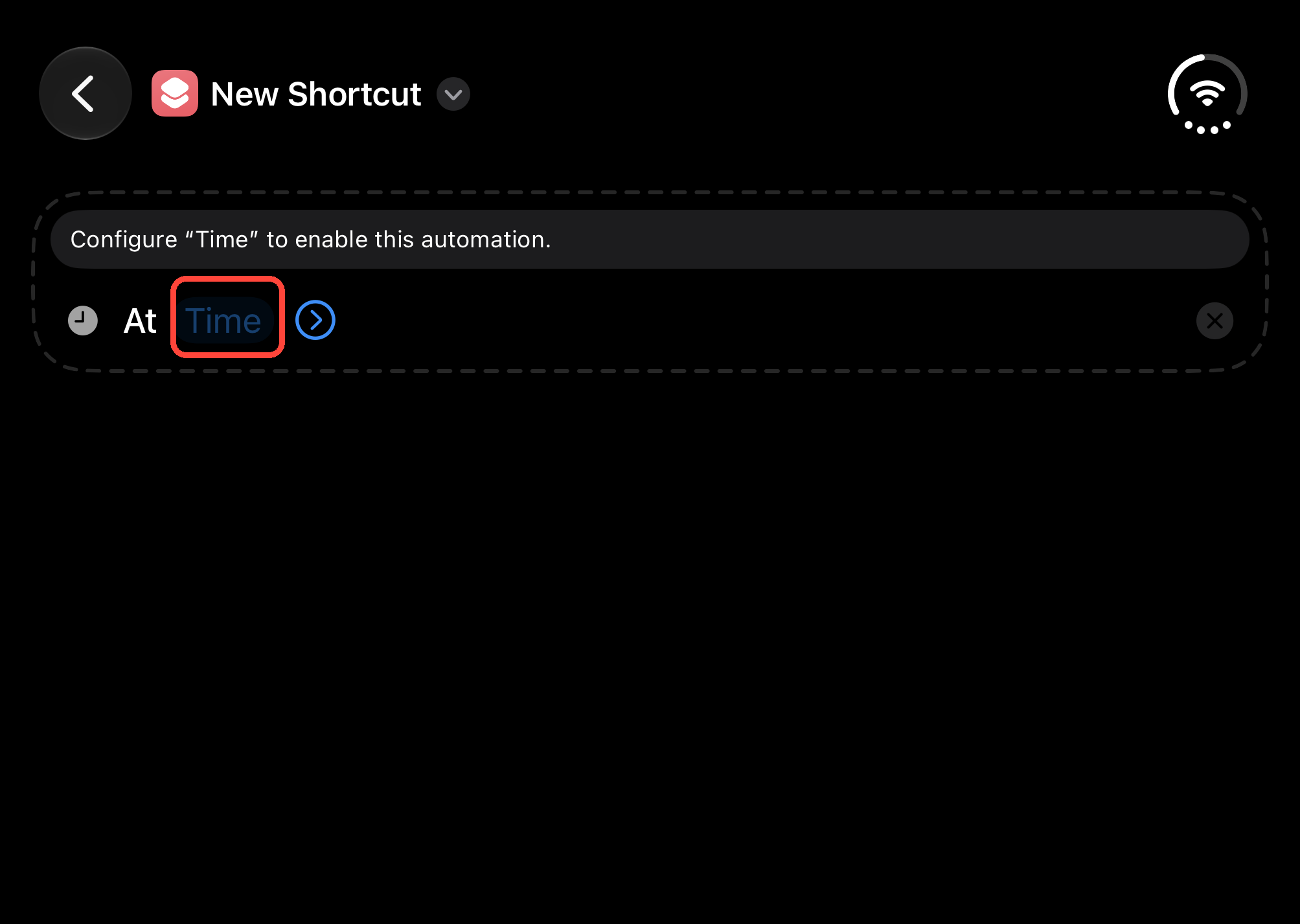
Tap the blue Time field in the trigger you just added.
Choose when you want your wallpaper to change. We use 08:00 (8:00 AM) in this example. Tap outside the time picker when you have finished choosing a time.
Step 4: Repeat every day
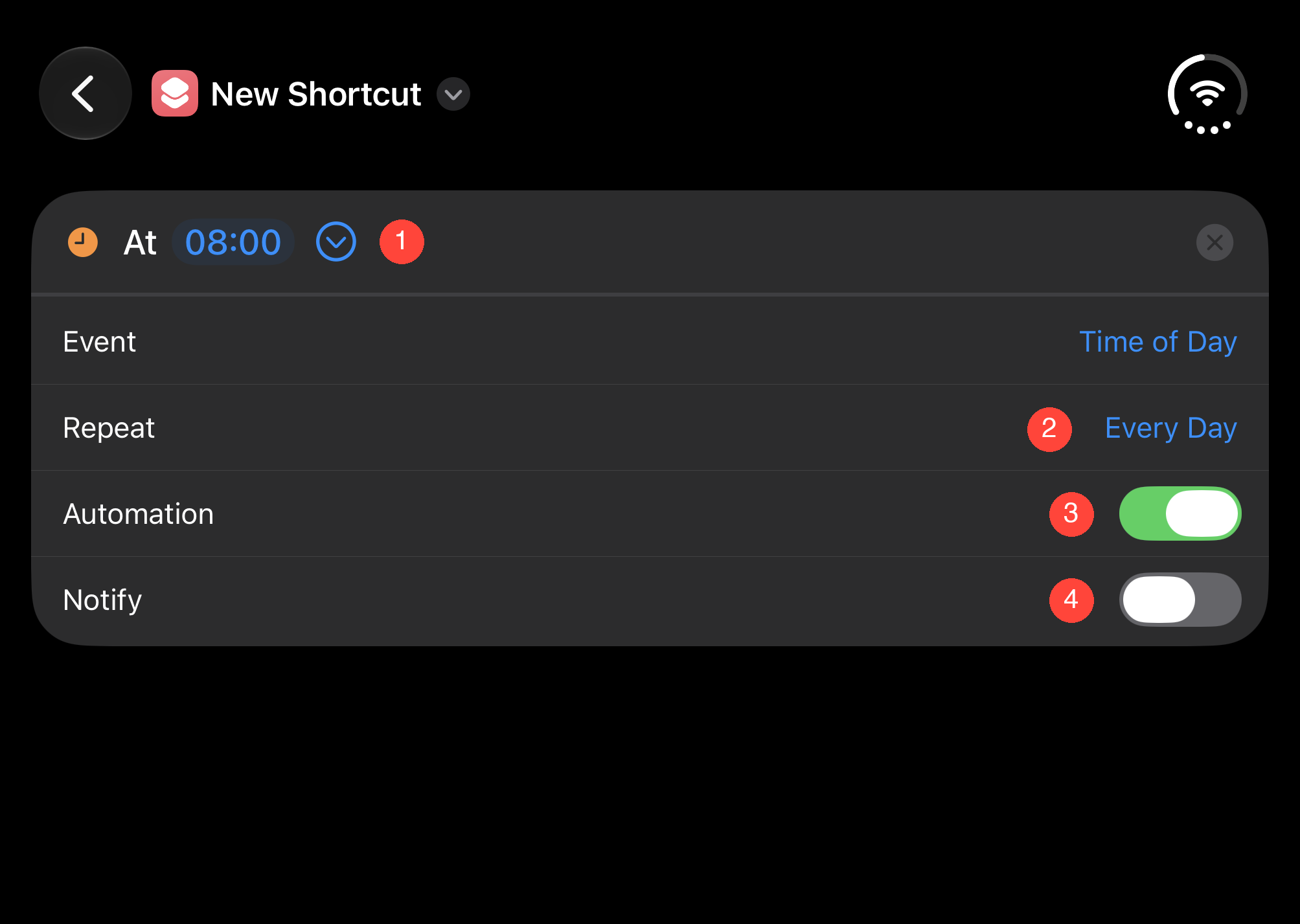
Follow the numbered markers in the screenshot:
- Tap the blue arrow next to the time to expand the settings.
- Set Repeat to Every Day.
- Make sure Automation is on. The switch should be green.
- Set Notify to your preference. Leave it off, as shown, if you do not want a notification when the automation runs.
Step 5: Add Run Shortcut
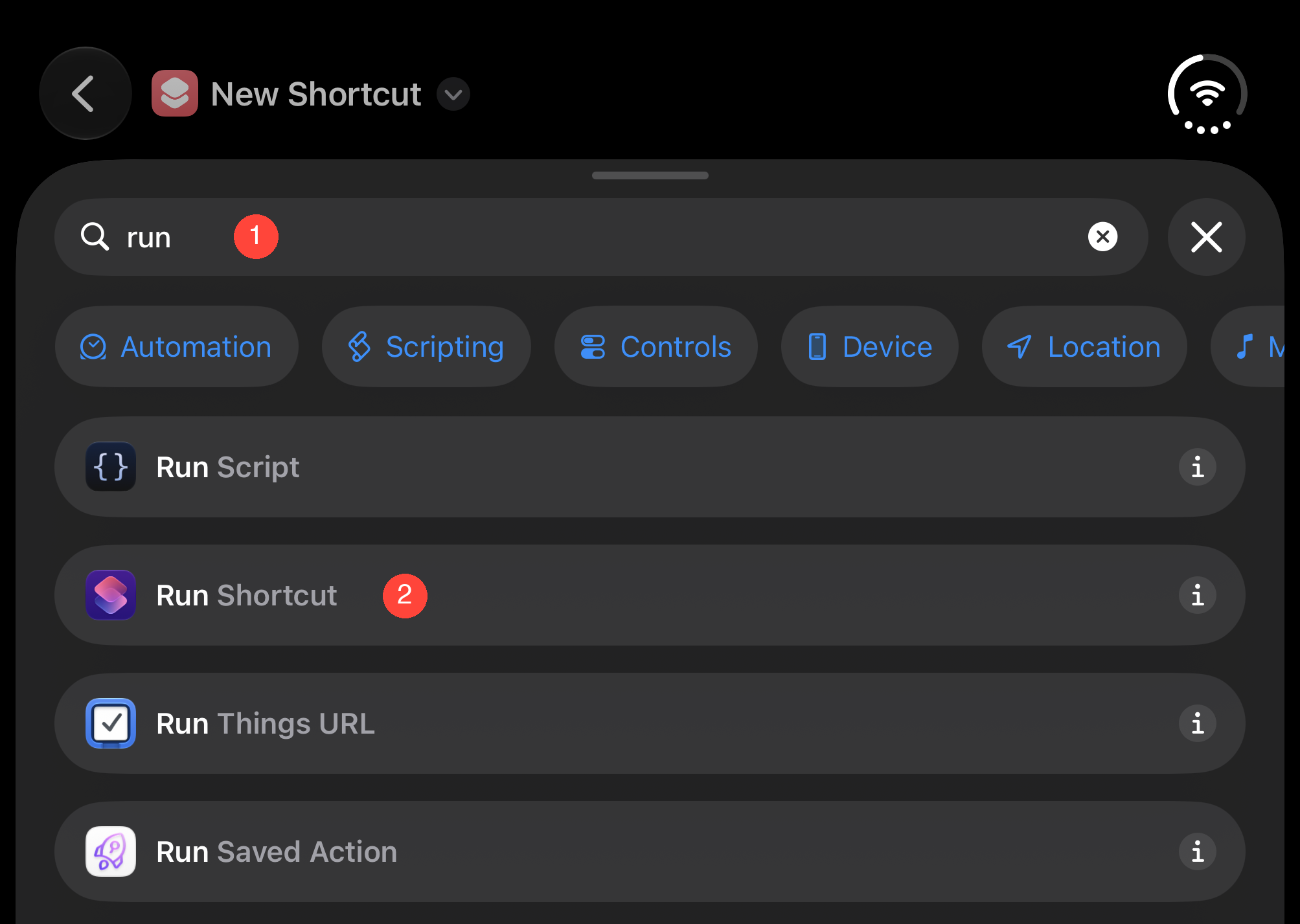
- Tap the search field in the action panel and enter run.
- Select Run Shortcut from the results.
Step 6: Choose Cuto Random
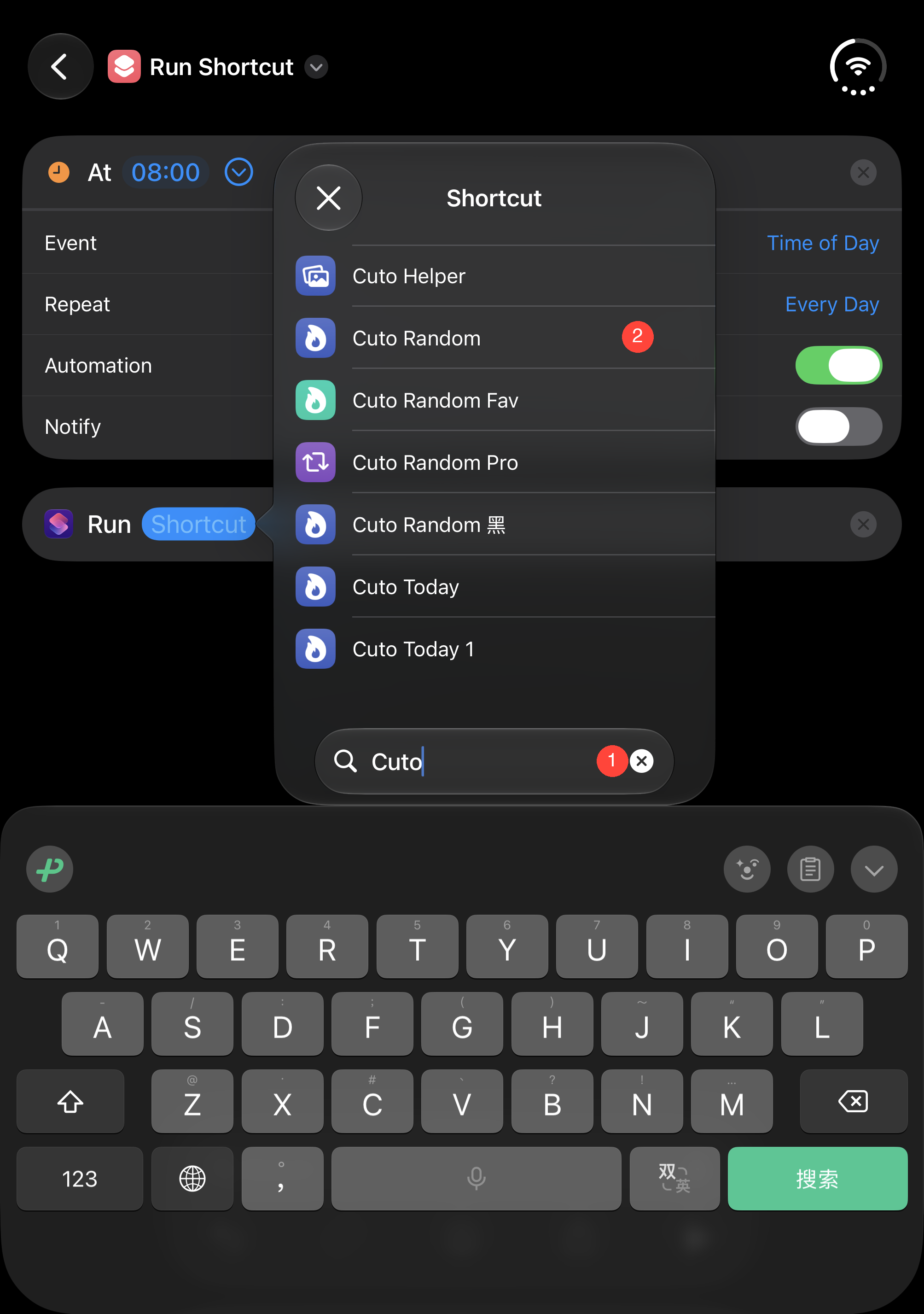
In the new Run action, tap the blue Shortcut field to open the shortcut picker. Then:
- Search for Cuto.
- Select Cuto Random.
If you prefer Cuto’s daily featured wallpaper, select Cuto Today instead. The rest of the setup is the same.
Step 7: Check your settings
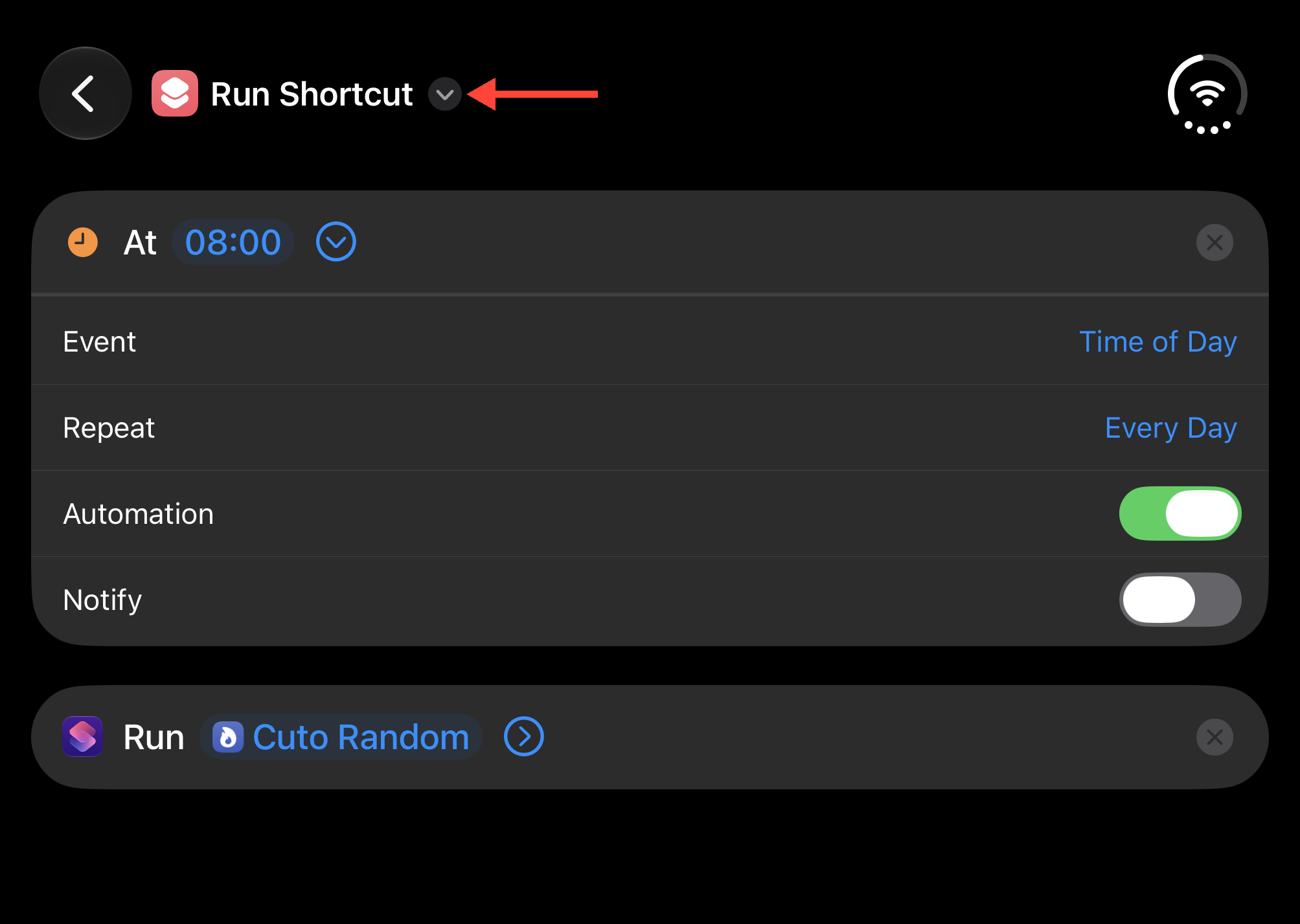
Check that the trigger is set to 08:00, Every Day, with Automation turned on. The action below should read Run Cuto Random, or Run Cuto Today if that is what you selected.
Then tap the down arrow next to the shortcut’s name at the top to give it a name you will recognize.
Step 8: Rename the shortcut
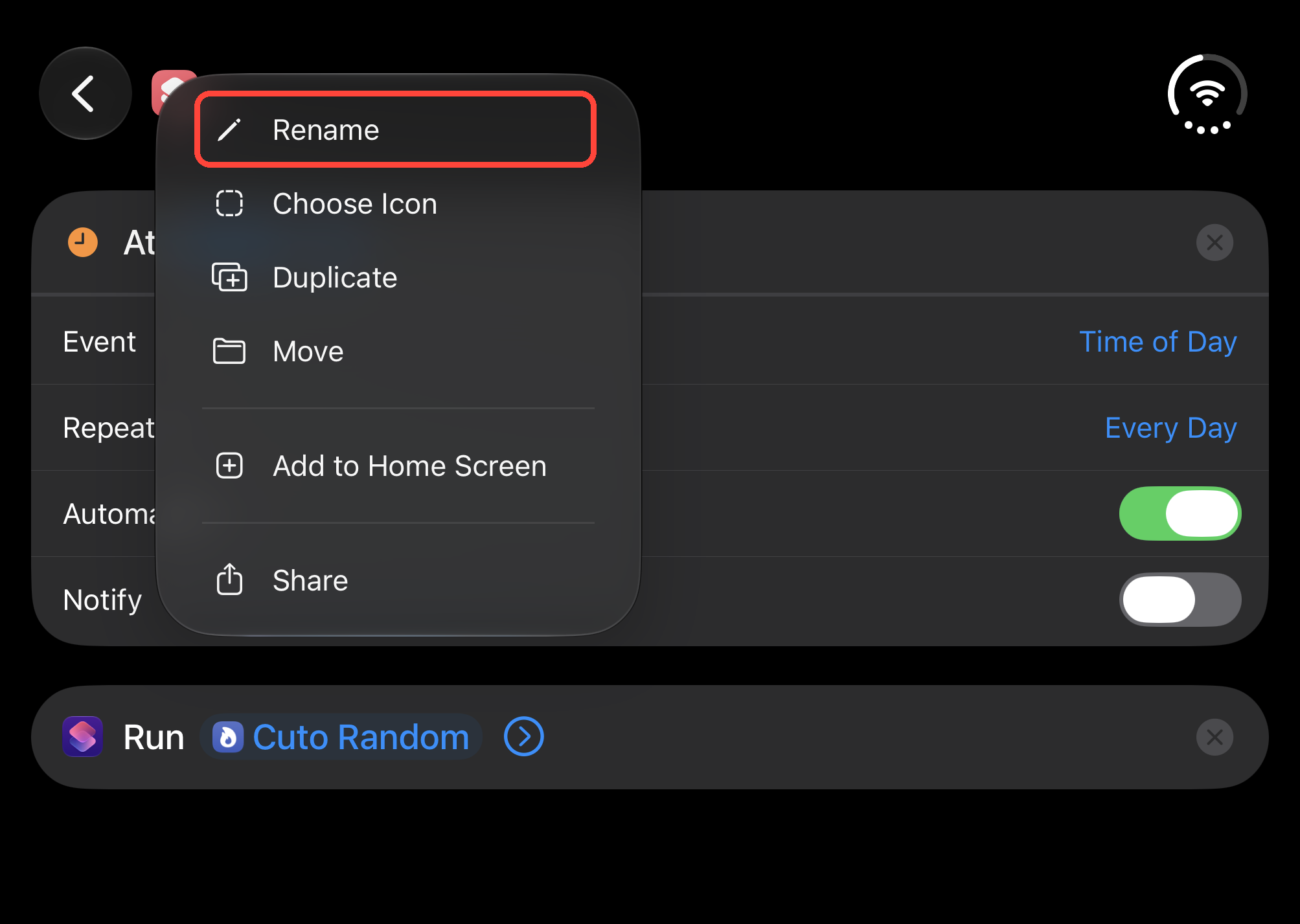
In the menu, tap Rename.
Step 9: Finish setting up
Name your shortcut Cuto Daily Random, or choose any name you like.
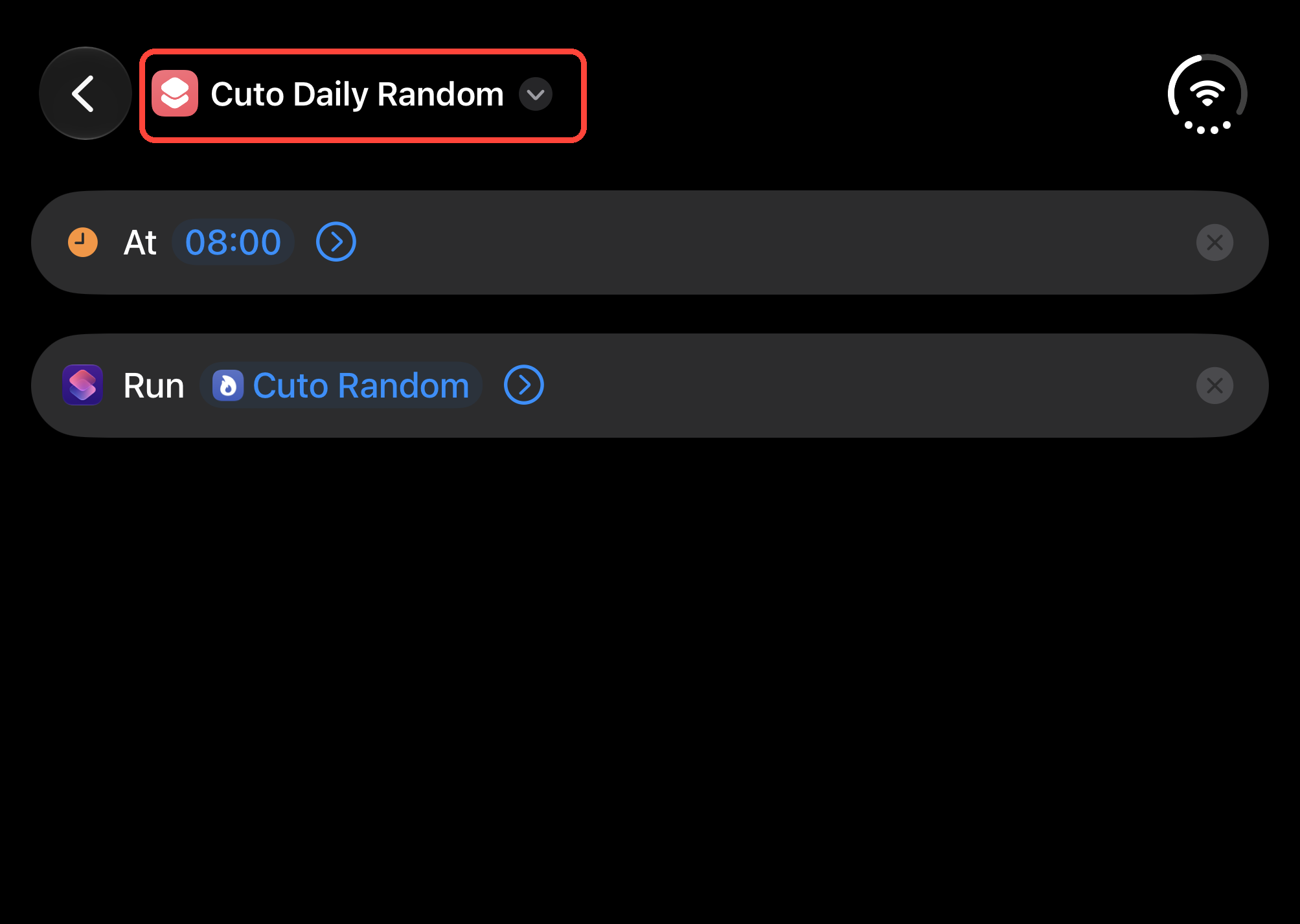
Your shortcut is now set to run every day at the time you chose.
Change the schedule or pause the automation
Find Cuto Daily Random in the Shortcuts app and open it for editing:
- Change the time: Tap the time in the trigger and choose a new hour and minute.
- Change how often it runs: Expand the trigger and adjust Repeat.
- Pause the automation: Turn off Automation in the trigger. Turn it back on when you want to resume.
- Switch the wallpaper source: Tap the shortcut name in the Run action and choose Cuto Random or Cuto Today.
If your wallpaper does not change as scheduled
First, run Cuto Random or Cuto Today manually and check for permission requests or error messages. Then open your scheduled shortcut and check its time, repeat frequency, Automation switch, and selected shortcut.
If a wallpaper preview appears each time, you need to confirm it manually before the wallpaper changes. Open the Cuto shortcut being run and check Show Preview in its wallpaper-setting action.
If you still need help, contact us through the feedback option in Cuto or email hi@cutowallpaper.com. Include your iOS version and screenshots of your shortcut settings.